How to turn off the Spaces animation on Mac
macOS has no switch for the Spaces animation alone. Here is what the built-in Reduce Motion setting changes, how to make the switch itself shorter, and how to undo each step.
Free · macOS 13+ · Apple Silicon & Intel · Notarized by Apple
 Notes
 Calendar
 Mail
 SafariNotesCalendar
Desktop 1
 MaccelerateYour Spaces. At your pace.
Illustrative timing, not measured.
The short answer: native settings and their limits
You cannot turn off only the Space-switching animation in System Settings. There are two realistic routes, and they solve different problems:
- Reduce Motion (built in) changes how things move on screen across the whole system, including when you switch desktops. It is the right choice if the movement itself bothers you.
- A targeted speed setting such as Maccelerate shortens the switch between native Spaces and leaves the rest of macOS as it is. It is the right choice if the waiting bothers you.
Both are reversible, both keep System Integrity Protection on, and you can use them together. If you are unsure which one you need, the Reduce Motion comparison goes through it by outcome.
Try Reduce Motion first
- 1
Open the setting
On macOS 26 Tahoe, choose Apple menu → System Settings → Accessibility → Motion. On macOS 15 Sequoia and earlier, it is under Accessibility → Display.
- 2
Turn on Reduce motion
Apple describes it as changing the movement of elements on screen, for example when you open apps, switch between desktops or open Notification Center.
- 3
Switch a few Spaces and decide
If the calmer switch is all you wanted, you are done. To undo it, turn the same setting off again.
What Reduce Motion does not promise is a shorter switch. It is about movement, not duration, and many people report that switching still takes a moment with it on. It also affects other parts of macOS, which is exactly what you want if you use it for comfort, and possibly not what you want if you only meant Spaces.
Speed up native Space transitions with Maccelerate
Maccelerate is a free, open-source menu bar app that triggers macOS’s own Space switch with a much shorter transition. Your desktops, Mission Control and windows stay native; it only changes how long the move takes.
Install, grant permissions, and choose a speed
- 1
Download and open Maccelerate
Drag it from the DMG to Applications and open it. No account or email is needed.
- 2
Allow Accessibility
macOS asks for Accessibility access, and possibly Input Monitoring, so the app can recognise your shortcuts and swipes.
- 3
Choose Fast, Faster or Instant
The speed applies to Space switches, and if you turn them on, to trackpad swipes, Cmd-Tab across Spaces and Mission Control.
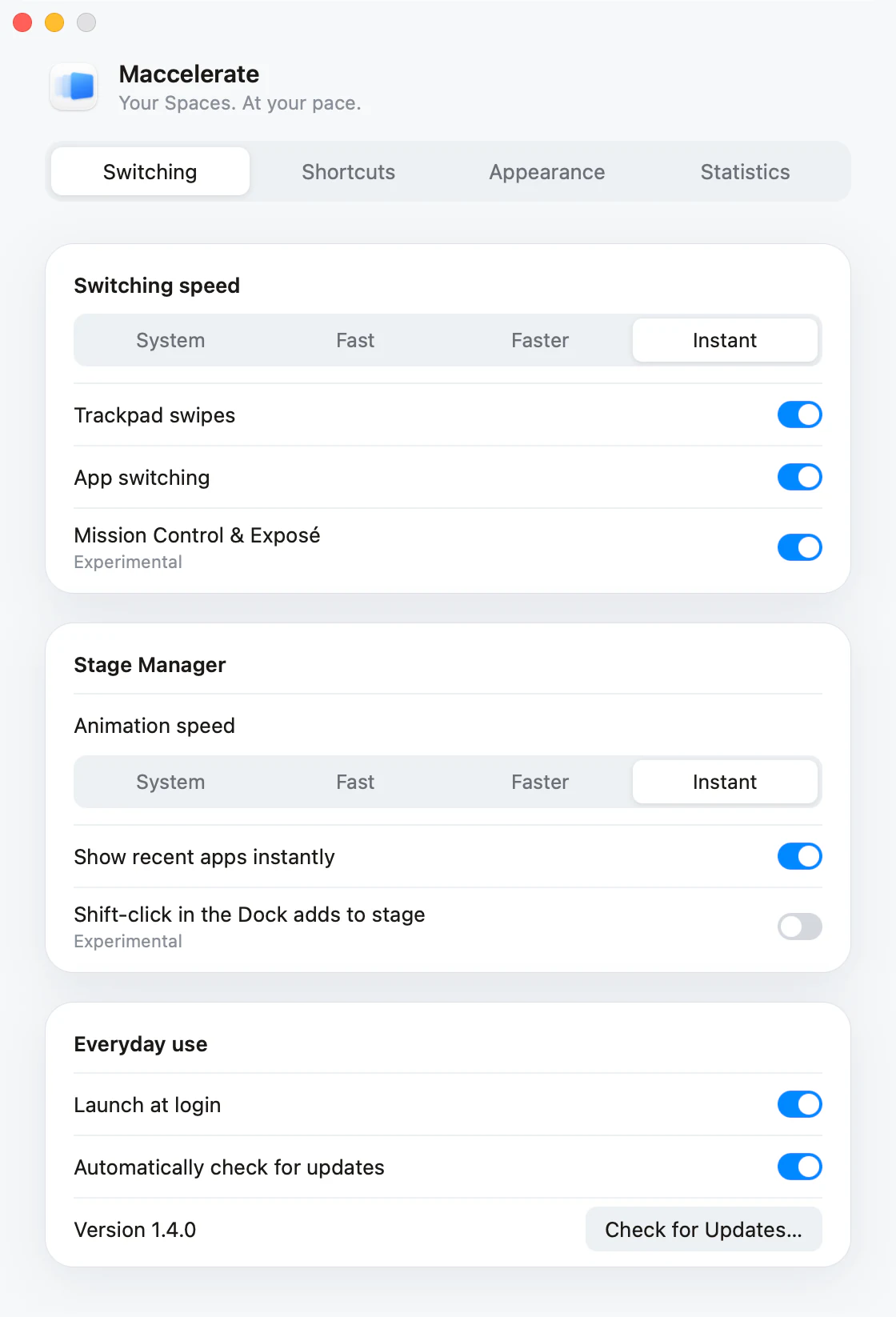
Return to System when you want native behavior
Choose System in the switching speed to hand Space switches, Cmd-Tab, swipes and your macOS shortcuts back to macOS. Maccelerate remembers your previous speed for when you switch back. Two details: your own additional shortcuts keep working and move at Fast, since macOS has no animation of its own for them; and the Stage Manager options are separate, so set them back to System too if you changed them. Quitting Maccelerate also returns Space switching to macOS.
More on the presets in switch Spaces instantly.
Why old Terminal commands may not work
Search results still pass around defaults write com.apple.dock … commands that once changed Dock or Mission Control animation timing. Many of them date from much older macOS versions, and we could not confirm that any of them shortens the Space switch on current releases. We do not list them here, because we cannot give you evidence that they work, or a reliable account of their side effects.
Two firm rules: a guide that asks you to disable System Integrity Protection for this is asking for far more than an animation is worth, and any command you do run should come with an exact undo. Maccelerate needs neither.
Version-specific caveats and common questions
- Builds: Maccelerate 1.5.0 is one signed, notarized universal DMG for Apple Silicon and Intel, targeting macOS 13 and later.
- Tested live: the 1.5.0 release notes name macOS 26.6 on Apple Silicon. Intel Macs, other macOS versions and display arrangements have limited live coverage.
- Permissions: Accessibility, and Input Monitoring if macOS asks. System Integrity Protection stays on.
- Undocumented behaviour: some of what Maccelerate does relies on private macOS APIs and settings, so a macOS update can change it.
- Local only: settings and statistics stay on your Mac; there is no telemetry. Update checks are optional and off by default.
Can macOS disable only the Spaces animation?
Not from System Settings. There is no switch for the Space-switching animation alone. Reduce Motion is the closest built-in option, and it changes motion across the whole system.
Does Reduce Motion make every Space switch instant?
No. Apple describes Reduce Motion as changing how elements move on screen, including when you switch between desktops. It is about movement, not duration: the switch moves less, but many people report that it still takes a moment.
How do I restore the original switching behavior?
Choose System as the switching speed in Maccelerate, or quit the app. Space switches, Cmd-Tab, swipes and your macOS shortcuts then run as macOS does them. The Stage Manager options are separate: set them back to System and turn off Show recent apps instantly.
Shorter switches,
no system changes.
Free for macOS 13 and later. Choose System any time to go back to macOS’s own animation.
Version 1.5.0 · Release notes · Free and open source, MIT licensed