Mac Spaces keyboard shortcuts, explained
The keys macOS gives you for moving between desktops, how to turn on numbered desktops, and what Maccelerate adds: faster transitions for the same keys, and a shortcut back to your last Space.
Free · macOS 13+ · Apple Silicon & Intel · Notarized by Apple
 Notes
 Calendar
 Mail
 SafariNotesCalendar
Desktop 1
 MaccelerateYour Spaces. At your pace.
Illustrative timing, not measured.
The native shortcuts to try first
| Action | Shortcut | Notes |
|---|---|---|
| Move one Space left or right | ⌃← / ⌃→ | Works on the display your pointer is on when displays have separate Spaces |
| Open Mission Control | ⌃↑ | Also a swipe up with three or four fingers |
| Show all windows of the front app (App Exposé) | ⌃↓ | Also a swipe down, depending on Trackpad settings |
| Switch to Desktop 1, 2, 3 … | ⌃1, ⌃2, ⌃3 … | May be off; listed only for desktops that exist (see below) |
| Move between Spaces by trackpad | Swipe left or right with three or four fingers | Set in System Settings → Trackpad → More Gestures |
You change all of these in System Settings → Keyboard → Keyboard Shortcuts → Mission Control. Apple documents the arrow keys and gestures in its guide to working in multiple Spaces.
Enable shortcuts for numbered desktops
- 1
Create the desktops
Open Mission Control and click + in the Spaces bar until you have as many desktops as you want shortcuts for.
- 2
Open the Mission Control shortcuts
System Settings → Keyboard → Keyboard Shortcuts → Mission Control. Expand the Mission Control entry if it is collapsed.
- 3
Turn on “Switch to Desktop N”
Tick each desktop you want. ⌃1 to ⌃9 are the usual defaults; you can record other keys.
Why a desktop shortcut may not appear or fire
- The desktop does not exist yet. macOS typically lists numbered shortcuts only for desktops you have, so add it in Mission Control first.
- The shortcut is off, or another app uses the same keys.
- Full-screen apps occupy their own Spaces and do not get a “Desktop” number.
Use your macOS shortcuts with Maccelerate
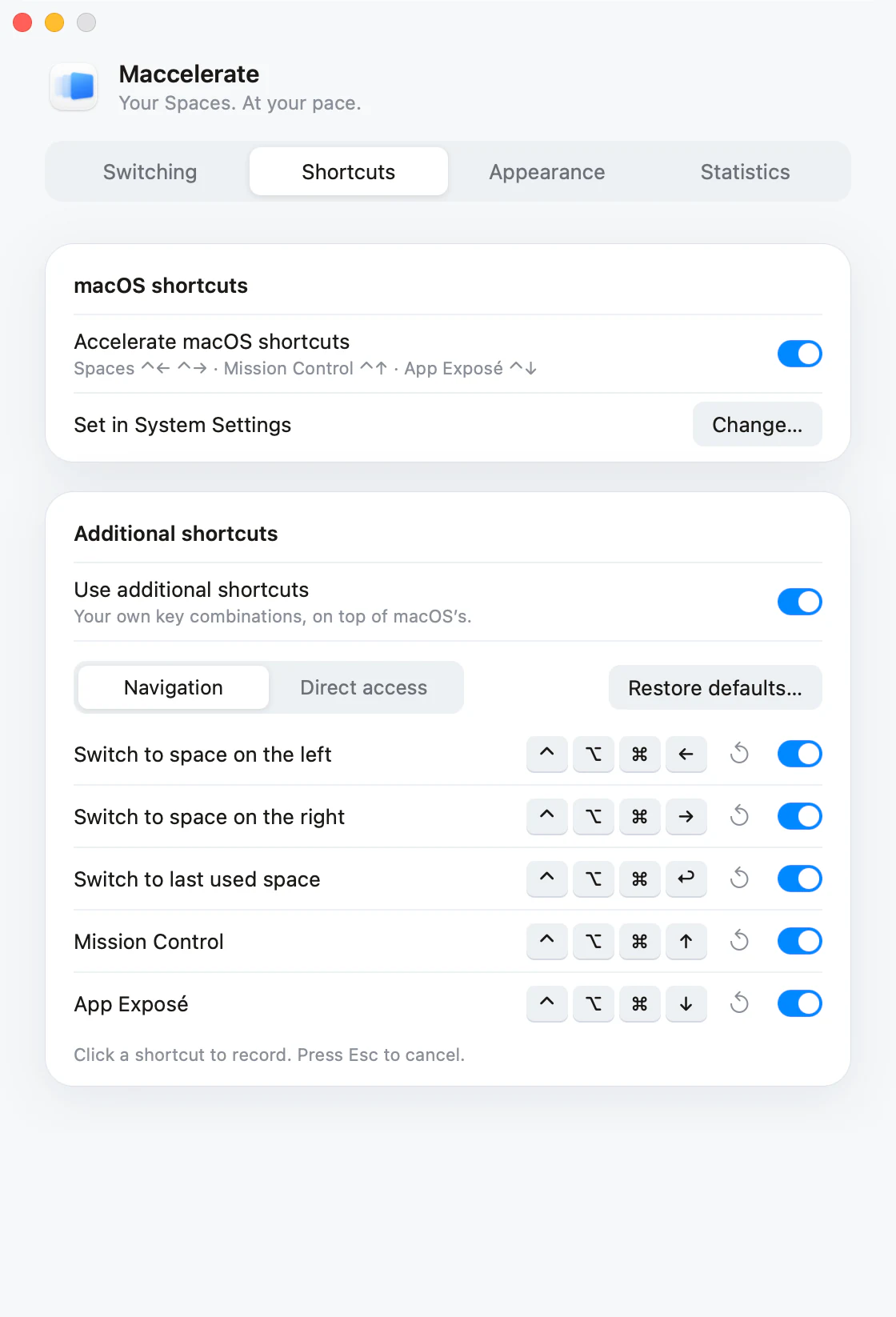
Maccelerate does not ask you to learn new keys. With Accelerate macOS shortcuts on, it reads the bindings you set in System Settings (left and right, Desktop 1 to 10, Mission Control and App Exposé) and runs them at your switching speed. It never changes or enables your macOS bindings; the Change… button only opens System Settings.
Optional extra shortcuts and the previous Space
Additional shortcuts are your own combinations on top of macOS’s, in two groups:
- Navigation: switch to the Space on the left or right, switch to last used space, Mission Control and App Exposé. The defaults use ⌃⌥⌘ plus an arrow or Return.
- Direct access: switch to Space 1 to 10, independent of macOS’s numbered-desktop shortcuts.
“Switch to last used space” is the one macOS does not have: it takes you back to the Space you were on before the current one, like a back button. Each shortcut can be re-recorded, turned off on its own, or reset; the whole list can be turned off with one switch.
Keyboard layouts, displays, and conflicts
Shortcuts depend on your keyboard layout, the desktops that exist and what other apps already use. A few things to know:
- Maccelerate refuses a combination that is already assigned within its own list and tells you which action has it.
- Other tools such as window managers or launchers may use ⌃⌥⌘ combinations too. If two apps react to the same keys, re-record one of them.
- On non-US layouts, number and symbol keys can sit in different places; record the shortcut on the keyboard you use.
- Maccelerate does not raise macOS’s limits on desktops; it only makes switching between them shorter.
- Builds: Maccelerate 1.5.0 is one signed, notarized universal DMG for Apple Silicon and Intel, targeting macOS 13 and later.
- Tested live: the 1.5.0 release notes name macOS 26.6 on Apple Silicon. Intel Macs, other macOS versions and display arrangements have limited live coverage.
- Permissions: Accessibility, and Input Monitoring if macOS asks. System Integrity Protection stays on.
- Undocumented behaviour: some of what Maccelerate does relies on private macOS APIs and settings, so a macOS update can change it.
- Local only: settings and statistics stay on your Mac; there is no telemetry. Update checks are optional and off by default.
Frequently asked questions
Why does Control plus a number do nothing?
Usually the shortcut is off, or the desktop does not exist yet: macOS typically lists a numbered “Switch to Desktop” shortcut only for desktops you have. Add the desktop in Mission Control, then turn on its shortcut in System Settings → Keyboard → Keyboard Shortcuts → Mission Control.
Can I keep my existing macOS shortcuts?
Yes. Maccelerate reads the Spaces, Mission Control and App Exposé shortcuts you set in macOS and does not change them. With Accelerate macOS shortcuts on, the same keys run at your chosen speed.
Can Maccelerate jump back to my previous Space?
Yes, with the optional additional shortcut “Switch to last used space”. It returns to the Space you were on before the current one. System Settings has no shortcut for this.
Cmd-Tab is the other common way to land on a different desktop; see Cmd-Tab across Spaces.
The keys you know,
a shorter trip.
Free for macOS 13 and later. Your macOS shortcuts stay exactly as you set them.
Version 1.5.0 · Release notes · Free and open source, MIT licensed