Speed up Mission Control and App Exposé
Mission Control and App Exposé zoom out with an animation you cannot adjust in System Settings. Maccelerate shortens supported transitions into them, using the shortcuts and swipes you already know.
Free · macOS 13+ · Apple Silicon & Intel · Notarized by Apple
 Notes
 Calendar
Desktop 1
 MaccelerateYour Spaces. At your pace.
Illustrative timing, not measured.
Which animation feels slow?
“Mission Control is slow” can mean three different things, and each has a different fix:
- The zoom into the overview takes a while every time you press ⌃↑ or swipe up.
- The slide to another desktop, from the overview or with ⌃←/→, takes a while.
- The screen stutters, drops frames or freezes during either of them.
Mission Control overview versus Space switching
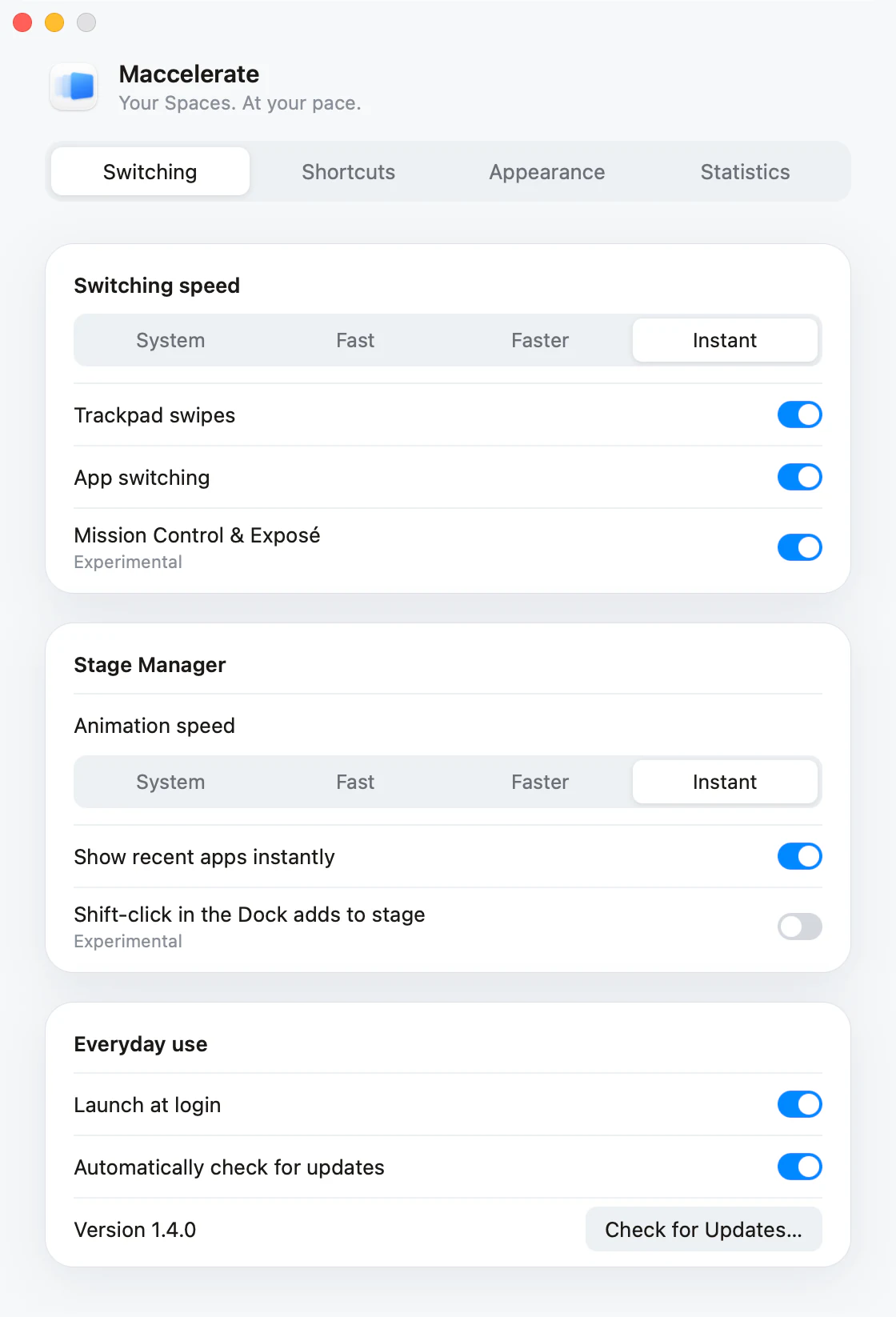
The overview and the Space switch are separate animations. Maccelerate has one switching speed that covers both: Space switches, and with Mission Control & Exposé on, the transitions into the overview through supported shortcuts and swipes. If only the slide between desktops bothers you, switch Spaces instantly covers that part in detail. Stutters are a third problem; see below.
Use Maccelerate with supported shortcuts
| Entry point | macOS default | With Maccelerate |
|---|---|---|
| Mission Control shortcut | Control–Up Arrow, changeable in System Settings | Accelerated when Accelerate macOS shortcuts is on; your binding is read, not changed |
| App Exposé shortcut | Control–Down Arrow, changeable in System Settings | Accelerated the same way |
| Additional shortcuts | None | Optional own keys, ⌃⌥⌘↑ and ⌃⌥⌘↓ by default |
| Swipe up or down | Three or four fingers, per Trackpad settings | Accelerated when Trackpad swipes is on |
| Hot corners, Dock, Mission Control key | Native | Not promised; may keep the native animation |
The Mission Control & Exposé switch in the Switching settings is marked experimental: it detects when an overview is open so that switching from inside it uses your speed too. Detection relies on undocumented behaviour and may miss an open overview after a macOS update.
App Exposé uses a related, separate action
App Exposé shows all windows of the front app. macOS treats it as its own action with its own shortcut, so Maccelerate does too: it has its own row among the macOS shortcuts and among the additional shortcuts, and you can turn either off on its own. With Trackpad swipes on, the swipe down that opens App Exposé (if your trackpad settings use it) runs at your speed as well.
If the screen stutters, diagnose the system first
A shorter animation does not help if your Mac struggles to draw the overview. Before you change any speed:
- Open Activity Monitor and look for a process using a lot of CPU or GPU while you open Mission Control.
- Check whether it happens on one display only, especially a high-refresh or scaled external monitor. Spaces on ProMotion explains why.
- Check for a macOS update; overview bugs are often fixed in point releases.
- Try with fewer full-screen apps or windows to see whether the load matters.
Compatibility, permissions, and restoring System
- Builds: Maccelerate 1.5.0 is one signed, notarized universal DMG for Apple Silicon and Intel, targeting macOS 13 and later.
- Tested live: the 1.5.0 release notes name macOS 26.6 on Apple Silicon. Intel Macs, other macOS versions and display arrangements have limited live coverage.
- Permissions: Accessibility, and Input Monitoring if macOS asks. System Integrity Protection stays on.
- Undocumented behaviour: some of what Maccelerate does relies on private macOS APIs and settings, so a macOS update can change it.
- Local only: settings and statistics stay on your Mac; there is no telemetry. Update checks are optional and off by default.
To go back to macOS’s own Mission Control animation, choose System as the switching speed, or turn off Mission Control & Exposé and Accelerate macOS shortcuts. Your additional shortcuts stay available. Stage Manager has its own speed; see faster Stage Manager.
Frequently asked questions
Will this replace Mission Control?
No. Mission Control and App Exposé stay the macOS overviews. Maccelerate shortens supported transitions into them; it adds no overview of its own.
Does it speed up App Exposé too?
Yes, through the App Exposé shortcut set in macOS (Control–Down Arrow by default), the optional additional shortcut and, with Trackpad swipes on, the swipe down. Other ways to open it are not covered and may keep the native animation.
Will Maccelerate fix freezes or dropped frames?
No. It changes how long supported transitions take, not how fast your Mac draws them. If Mission Control freezes or stutters, look at busy processes, display settings and macOS updates first.
Mission Control,
with less waiting.
Free for macOS 13 and later. Your shortcuts stay as they are; choose System any time.
Version 1.5.0 · Release notes · Free and open source, MIT licensed